LLM - Custom Step Generator with Azure OpenAI
Description
The LLM Custom Step Generator is a tool that leverages Azure OpenAI’s GPT-4o to automatically create fully functional custom steps for SAS Studio flows. By providing a detailed prompt describing the desired logic, along with configuration files for accessing the Azure OpenAI API, the generator produces a tailored custom step file.
This file includes the necessary code (in Python or SAS), input/output configurations, and a user interface for integration into flows. The generator simplifies and accelerates the creation of custom steps, enabling users to automate complex tasks like data anonymization, table merging, or advanced data summarization with minimal effort.
Video and Blog Post
Watch the video and read the post LLM Custom Step Generator in SAS Studios to find out more.
Pre-requisites
To successfully use the LLM Custom Step Generator, ensure the following prerequisites are in place:
1. Azure OpenAI Resource
- Azure Subscription: An active Azure subscription is required to create and manage OpenAI resources.
- Deployed GPT-4o Model: Set up an Azure OpenAI resource and deploy a GPT-4o model. Note the following details for integration:
- Endpoint URL
- API Key
- Deployment Name
2. Environment Configuration (.env File)
- Create a
.envfile to store environment variables needed for API access. This file should include:
AZURE_OAI_ENDPOINT='https://my_endpoint.openai.azure.com/'
AZURE_OAI_KEY='your_api_key'
AZURE_OAI_DEPLOYMENT='gpt-4'
You can find an example in extras/.env.sample.txt.
3. System Message File
- A system message file provides context to the LLM for generating custom steps. It should include:
- A description of what a custom step is.
- Examples of custom step logic written in Python and SAS.
- Guidelines for structuring the output (e.g., prompt UI, program, and
.stepfile).
- This file acts as an "instruction manual" for the LLM, ensuring accurate and relevant output.
You can find an example in here.
4. Python Dependencies
- Install the following Python libraries in the Python instance accessed in SAS Studio, to enable interaction with the Azure OpenAI API:
python-dotenv: To load environment variables from the.envfile.requests: To send API requests to the Azure OpenAI service.
5. Output Location
- Specify a directory or file path where the generated custom step code will be saved. Ensure the location has appropriate write permissions.
6. SAS Studio Environment
- A working SAS Studio environment is required to upload and test the generated custom step file (
.step). The custom step was tested with SAS Viya LTS 2025.03 and Stable 2024.09.
7. Detailed Prompt
- Provide a clear and comprehensive description of the custom step logic, including:
- Inputs: Specify the data or files the custom step will use.
- Outputs: Define the expected output, such as a file or data set.
- Desired Functionality: Clearly describe the logic or process the custom step should perform.
- This prompt serves as the key input for the LLM to generate the custom step.
User Interface
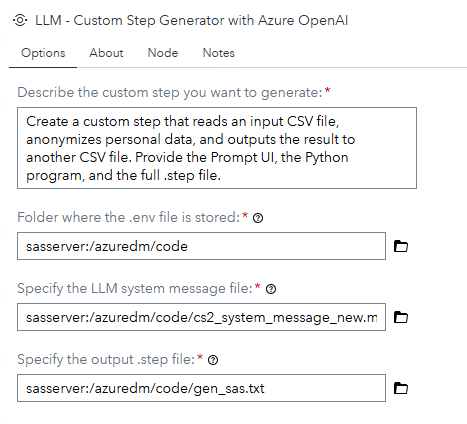
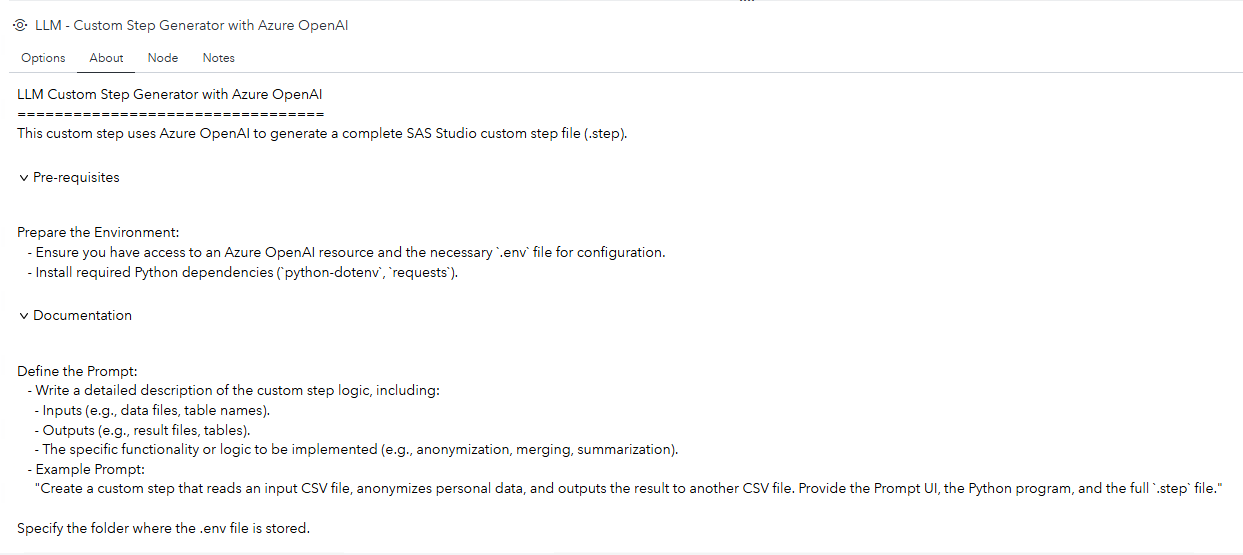
Requirements
Tested on Viya version LTS 2025.03 and Stable 2024.09.
Usage
The LLM Custom Step Generator is a tool that leverages Azure OpenAI's GPT-4o to create custom steps for SAS Studio workflows. These custom steps can automate tasks such as data processing, transformation, or documentation generation.
This tab provides instructions on how to use the generator, along with details about the expected inputs and outputs.
Steps:
-
Prepare the Environment:
- Ensure you have access to an Azure OpenAI resource and the necessary
.envfile for configuration. - Install required Python dependencies (
python-dotenv,requests).
- Ensure you have access to an Azure OpenAI resource and the necessary
-
Define the Prompt:
- Write a detailed description of the custom step logic, including:
- Inputs (e.g., data files, table names).
- Outputs (e.g., result files, tables).
- The specific functionality or logic to be implemented (e.g., anonymization, merging, summarization).
- Example Prompt:
"Create a custom step that reads an input CSV file, anonymizes personal data, and outputs the result to another CSV file. Provide the Prompt UI, the Python program, and the full
.stepfile." - Example Prompt: "Create a custom step using SAS logic. The step has two table inputs, for example SASDM.PRDSAL2 and SASDM.PRDSAL3. The logic will merge the two tables. Then it will summarize the product sales by YEAR, MONTH, PRODUCT and sum up the ACTUAL sales. It will then create another data set NATIONAL_SALES in SASDM listing by YEAR, MONTH create a new column CHAMPION_PRODUCT equal with the top selling product."
- Write a detailed description of the custom step logic, including:
-
Run the Generator:
- Execute the generator with your prompt and configuration files.
- The generator will produce the custom step code in approximately 15–30 seconds.
-
Save the Output:
- Save the generated code as a
.stepfile. - Upload the
.stepfile to your SAS Studio environment.
- Save the generated code as a
-
Test the Custom Step:
- Add the custom step to a workflow.
- Configure the step by selecting the appropriate inputs and outputs.
- Run the workflow to verify the results.
Usage Example
Custom Step options filled:
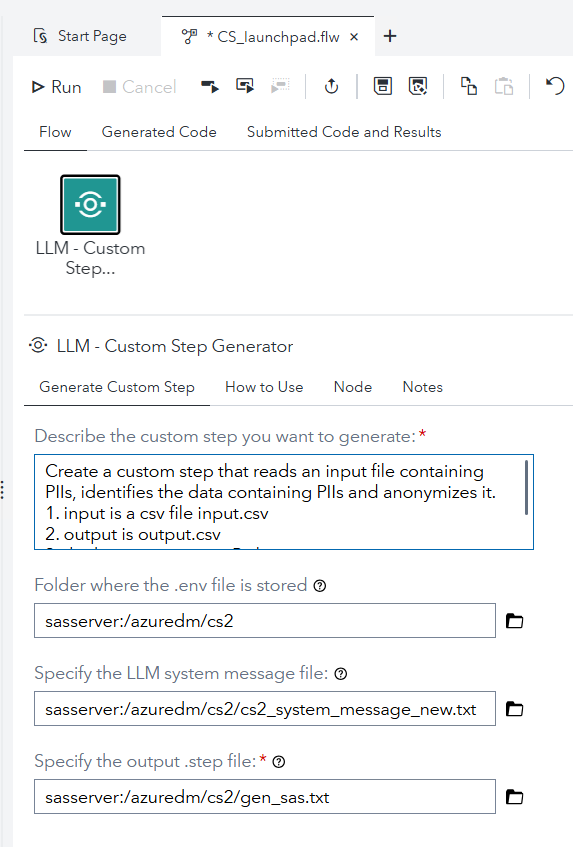
Outputs
- Generated Custom Step File:
- A
.stepfile containing:- The program logic (e.g., Python or SAS code).
- The user interface (Prompt UI) for configuring inputs and outputs.
- A
- Expected Results:
- A functional custom step that can be integrated into SAS Studio flows to perform the specified task.
Notes
- Ensure that the
.stepfile is tested in a controlled environment before deploying it to production workflows. - For troubleshooting, review the generated code and the input prompt for any inaccuracies or missing details.
- The quality of the output depends on the clarity and specificity of the provided prompt.
Change Log
-
Version 1.2 (23JUL2025)
- Small changes to About tab structure to reflect best practices.
-
Version 1.1 (29JUN2025)
- Implemented reviewer suggestions.
-
Version 1.0 (14FEB2025)
- Initial version